What's New in Legacy 7.0

This video previews some of
exciting, new features in Legacy 7.0!

1. Mapping
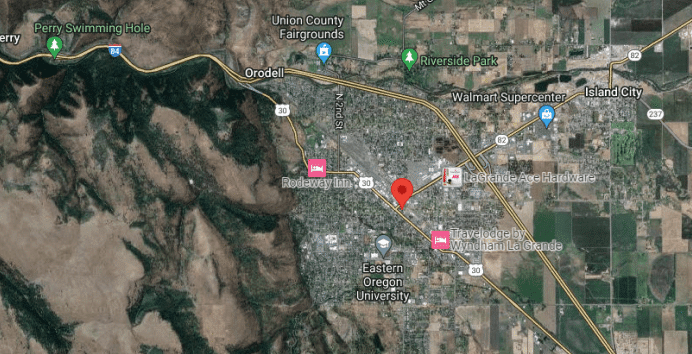
– Use Microsoft Virtual Earth to automatically pinpoint and plot important
locations in ancestors’ lives from within Legacy. See 3-D, satellite and
bird’s eye images of where your ancestors lived. Now it is easy to track
your ancestor’s migration.
2. Wall Charts
– Experience the enjoyment of
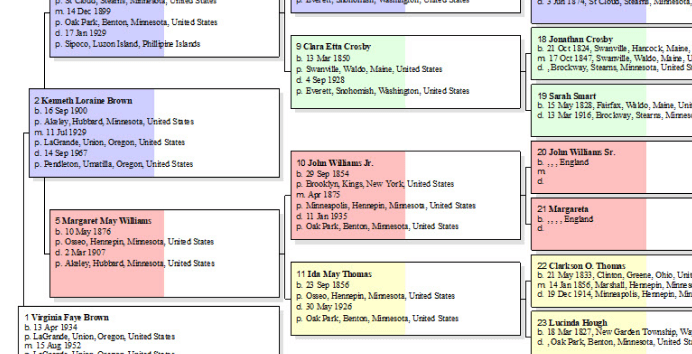
showing off your family tree by producing stunning full-color wall charts –
ancestor, descendant, fan, hourglass, bow tie, and even DNA charts. Use them
for your next family reunion or for a deserving wall in your home.
3. SourceWriter
– Cite your sources easily and correctly with the new SourceWriter.
SourceWriter makes it simple for you to select the correct input screen so
that you enter all the pieces needed to correctly cite any source of
information in the thousands of formats that exist for them. The information
you enter is correctly and precisely formatted to match the genealogy
industry standards for source citations when printing footnotes, endnotes,
and bibliographies. Multiple citations for an event can be combined into one
paragraph, thus avoiding a long string of superscripted numbers within the
report body.
4. Interview Reports
– Choose from over 1,200 carefully
pre-written interview questions and memory triggers to help you capture your
family’s memories before it is too late.
5. Guided Setup Wizard
– Getting started with Legacy is even easier
now. The new guided setup wizard takes you by the hand and guides you
through the setup process in an easy-to-understand way.
6. New Relationship
Calculator - See how any two people
are connected, not only through direct blood relationships but also by
marriage. A person might be the "great-grandfather of the wife of your 2nd
great-grandnephew. You can also specify how many of these non-blood
relationships you want to see.
7. More Powerful
Searching – Searching your Legacy data
is easier than ever before. You can now search for individuals that are
missing parts of names, birth or death information, marriage information and
much more. You can also search for missing source citations as you document
your family files.
8. Now Attach Any
Document to Individuals and Marriages
- Along with attaching pictures, sounds, and video to individuals, events,
locations, and sources, you can now also attach any other kind of document (PDFs,
Word files, etc.).
9. Enhanced Backups
- Legacy can now backup your family file and multimedia files at the same
time, making it easier to transfer everything to another computer.
10. Edit Records from
the "Used By" Lists - All of the
master lists in Legacy have an option to view the individuals who use the
items in the list. You can now edit those individuals right from the list
instead of having to exit the list and edit them separately.
11. Standardization
Tips – New alerts will appear if
something questionable has been entered in the Individual's Information
screen. This helps users keep their data standardized. The
Standardization Tips comply with Getting it Right.
12. Privacy
– enhanced privacy options ensure that only
the information you want to share will be visible to others.
13. Best Fit Child
Columns - The new Best Fit option in
the Family View expands or contracts the child list columns to fit the
number of children for the current couple. No more trying to guess the
optimum number of child columns. Legacy does it for you.

Other great Deluxe features that continue from version
6.0…
1. Research Guidance - Legacy’s Research Guidance helps you locate records
that may contain information about your ancestors. It does this in four
steps: 1. Legacy helps you review the ancestor’s timeline, to be certain
that you've already recorded everything you know about the ancestor. 2.
Legacy suggests preliminary survey sources to help you learn if the research
is already in progress by another researcher. 3. After selecting your goals,
Legacy provides a list of prioritized suggestions to help you accomplish
them. 4. Finally, Legacy organizes the sources into a To-Do List.
2. Publishing Center - This new feature lets you select one
or more reports and combine them into one large book report. All the
information from the various reports are indexed and sourced together and a
master Table of Contents is also generated. You can also add a Title page,
Preface page, Dedication page, Copyright Notice page, Introduction Section,
and Abbreviations page to the beginning of the book.
3. Forms Center -
New forms will be added on a
continuing basis. These new forms will probably be available online in
various packets for those who want to download them.
4. Legacy Home - The new Legacy Home tab on the main screen of Legacy
brings you important information about your family file and also gives you a
global view into the world of genealogy. It includes Legacy News, To-Do item
reminders, birthday and anniversary reminders, general reminders, statistics
about your family file, links to update Legacy, technical support links and
much more. The built-in browser lets you view Internet content without ever
leaving Legacy.
5. Timelines -
This feature lets you select timeline files containing events from certain
localities, and add them to the Chronology report as background information
to show what was happening during a person's life. Timeline files can be
created and edited by the user.
6. Potential Problems List - The list of all the problems found are now presented in a
grid list that is retained from session to session (until rebuilt by the
user). From the list you can edit the affected individuals and correct the
problem or exclude it from future checking.
7. Global US County Verification - This new feature checks your entire family file to verify
that the US counties you have used were in existence for the time periods
you are using them for.
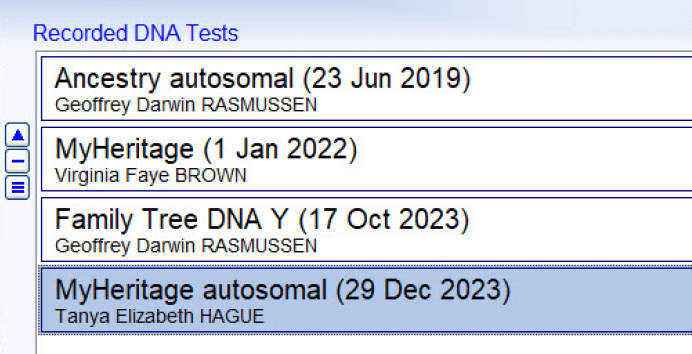
8. DNA - Legacy now lets you record DNA marker test results from
several different companies.
9. Location Prepositions - On the Add/Edit Location screen (reached from the Master
Location List), there is a field for the location preposition. This defaults
to "in" but can be changed to other prepositions like near, around, outside,
northwest, etc. These prepositions are then used when building report
sentences.
10. Sources - You can now connect source citations to:
This
individual never married (individual screen)
This couple didn't marry
This couple didn't have children
11. Book Reports - Complete control of spacing between all sections of the
reports. There is a Custom Report Spacing button on the Page Layout tab of
the various book reports. This opens a screen allowing you to specify the
blank line space above all the various report sections.
12. Book Reports -
The Location Index can now be printed with a different number of columns
than the Name Index.
13. Note Fields - There is now a Strip HTML button that lets you remove any
embedded HTML codes that ended up in the notes because of a Copy/Paste from
a web page (for example).
14. Note Fields - There are now Font styles buttons allowing you to bold,
underline, italicize, and superscript parts of the notes. The changes show
in the notes instead of just showing printer codes as in the past.
15. Potential Problems - Check for sort order of children, Check for children born < 9
months.
16. Soundex Code lookup from the Soundex
Calculator - (Tools >
Soundex Calculator). When a Soundex code has been generated, you can click
the Search Name List button to create a list of all the surnames in your
family file with the same Soundex code.
17. RTF Embedded Pictures - When reports are generated to an RTF file, there is an option
to embed the picture links in the file. This then automatically displays the
pictures in the report when the file is loaded into MS Word or other word
processors. The Standard edition only shows the picture paths in the
document. The option is set on the Other tab of the Options > Customize
screen.
18. Location Report - You can now include the birth and death date information for
each person on the report. You can also have the Age of the person shown for
each event when the locations were used.
19. Questionnaire - Output to screen/printer or text file.
20. Customize - Right-click any box title to reset the default values for the
options within that box. This is done on the various tabs of the Options >
Customize screen.
21. Conditional Event Sentences - There is a new IF-THEN-ELSE command that can be used in event
sentences to control the output better.
22. Pictures -
There is now support for
multiple-page TIF files (a TIF file containing more than one picture).
Other great Deluxe features that continue from version 5.0…
ESSENTIAL FEATURES
23. Geo Location Database - A collection of nearly three million current locations
worldwide divided into six regions:
PA - Pacific
Islands
US - United States
AF - Africa
AM - Americas (non-USA)
AS - Asia
EU - Europe
24.
Each location includes the name of the city, the county or province, the
state, if any, and the country name. Along with this information the
latitude and longitude coordinates are also included. Searching can be done
by any field(s). A Radius search is included to find cities within a
specified radius (in miles or kilometers) of a location.
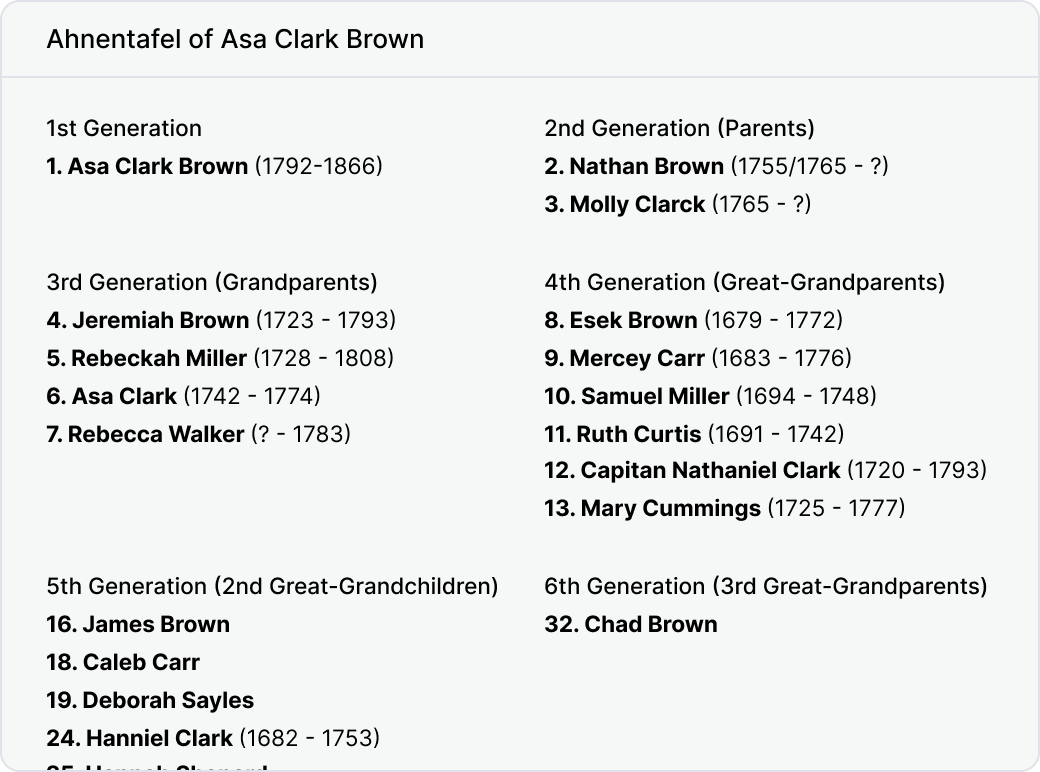
25. Descendant View Tab - This new view shows a descendant chart of the current person.
Any person can be edited by highlighting them and clicking the Edit button.
If the screen is not wide enough to show the entire line of information for
a person, highlighting the person displays all their info at the bottom,
along with the relationship of that person to the top person in the list.
Double-clicking on a person puts him/her at the top of the list and the
chart is regenerated. Columns are user-selectable and savable.
26. US County Verifier -
When you exit a location field, Legacy checks the validity of county names
for locations in the United States (if the Verify US Counties in Place Names
option is turned on in the Customize section). An error is reported if:
-
No county by
that name was ever found in that state. (This could be also be the result of
a misspelling.)
-
The county
was not in existence in this state at the date specified.
-
The County
had been dissolved in this state before the date specified.
When an error
is reported, you can choose to view a list of all the counties in that state
to see when they were founded and their term of existence.
27. Child-Parent Relationships -
The link between a
child and his/her father and mother can now be specified and sourced. The
existing Child Status field, which used to cover both the child status and
the relationship between child and parents, now only refers to the status,
such as Twin, Triplet, Stillborn, etc. The new Parent Relationship fields
are used to record how the child is associated with each parent, such as
Biological, Adopted, Guardian, Sealed, Step, as well as a place to record
Challenged and Disproved relationships. These new fields are displayed on
the Children List window as well as the Parents List window.
28. Multiple Lines of Descent Report -
There is a new book report style called Multiple Lines of Descent. This is
similar to a Register-style descendant narrative book but you can select two
or more ends of lines to include in the report. When the report is
generated, the first line is printed as a normal Descendant report would be.
Then the next line is started on the next page, and if it intersects with
the first line, a message is printed indicating where to look in the first
line for the remainder of the descendant line.
INTERNATIONAL LANGUAGE REPORTS
29. Reports in Different Languages -
Many reports in Legacy 7.0 can now be generated in several languages
including German, French, Spanish, Norwegian, and Dutch. Additional
languages are being added. You can now send reports to your friends and
relatives in other countries that they can actually understand!
NEW REPORTS
30. Calendar Creator - Create your own calendars, complete with pictures, birthdays,
and anniversaries. There are options to include a cover picture (front and
back), picture pages above each calendar month, and complete control over
color, layout, shadows, fonts, page size, etc. Create complete yearly
calendars suitable for gifts.
31. File ID Numbers Report - A new report lists all the filing numbers used in a family
file and shows where they have been used. Options let you filter the report
to specific areas if desired.
32. Name List Reports with Multiple Lines per
Record -
You can now design your list
reports with up to three rows of fields per record, thus greatly increasing
the amount of information for each person.
MASTER LIST OPTIONS
33. Master Location List Mapping-
There is now a new button called "Maps" that shows up when a location is
highlighted that has latitude and longitude values entered. Clicking the
button currently takes you to MapQuest and displays the appropriate map
showing a star at the designated location. If there is no lat/long, you are
taken to Yahoo maps using just the City, State parts of the location.
34. Master Location Maintenance - You can now Expand and Contract state names, Canadian
provinces, several other country breakdowns, and country names in your
Master Location List. This can be done for all locations, tagged or untagged
locations, or verified or unverified locations. There is also an option to
add or remove "USA" from USA locations. This can be applied to either the
Long or Short location names.
35. Save Your Place in Master Lists -
New "Set Bookmark" and "Go To Bookmark" options have been added to all
master lists. This lets you save your place from one session to another -
helpful, for example, while working through the Master Location list,
cleaning up the entries. These new options are reached by clicking the
Options button on any master list window.
PRIVACY OPTIONS
36. Private Individuals -
Any individual in the family file can now be marked as Private. All reports
now have the option to include or exclude these private persons. If cousin
Harry tells you to keep his dearly departed wife's information off your web
site and out of your reports, you can now easily do so.
37. Private Event Definitions -
You can now mark any Master Event Definition as Private so that they can be
excluded from reports and web pages.
CONVENIENCE
38. Event Definitions -
Added a checkbox to exclude an event name from the Potential Problems
report. Things like Obituaries and Probate customarily happen after a person
death. These event types can now be excluded from checking.
39. Note Fields -
Added Ctrl-F to all note fields for searching. F3 then searches for the next
occurrence.
EXTREMELY HELPFUL NEW FEATURES
40. File ID Numbers -
A new option lets you easily find the next available file reference number
in whatever format you have been using.
41. Family/Pedigree Views -
Hover Information - Holding the cursor over the Spouses icon shows the names
of all the spouses in the popup tooltips. Hovering over the Parents icon
shows the names of all the parents. Hovering over the AKA icon shows all the
alternate names for that person.
42. Entering Information -
A new feature now remembers the last ten locations that you have used. You
can then pop them up on any Location field and copy them in with one click.
You just right-click on the "in" label in front of a location field on the
Information, Event, and Marriage forms to get the list. The ten most
recently added locations are recorded with the most recent at the top of the
list. Older locations sink down the list and fall off the bottom as new
locations are added. They are also saved between sessions. This feature is
very helpful when entering recurring locations that don't "sort to the top"
for the auto-fill feature.
43. Legacy 7.0 also now remembers the
last ten dates entered.
You can then pop them up on any Date field by right-clicking on the label to
the left of the field. The Date feature works the same as the location
feature above.
44. Family View -
Who is marked as Living? A new feature colors the Husband and Wife labels as
well as the child numbers if they are marked as Living. (This is set on the
Data Format tab in the Customize screen. You can turn the option on and off
and also select the color to use.)
45. Events -
A new Event Clipboard lets you memorize and play back events saving you lots
of time. Sources, pictures, and addresses connected with the event are also
saved to the clipboard. See Add or Edit an Event.
NEW REPORTING OPTIONS
46. Marriage Screen -
You can now specify your own words for "Spouse" and "Marriage" for each
couple. If the couple wasn’t married then you might use words like Partner
and Partnership. These words are then used on all the reports in the
appropriate places. (Beta testers, please let us know if you find any
reports where the replacement words are not being used.)
47. Picture Family Tree Chart -
The options to print 1, 2, and 4 generations has been added. If printing one
generation, you can move the picture higher, lower, left, or right.
48. Name List Report –
You can build three separate
custom lines per record now. This gives you much more flexibility when
laying out the information you want to include on the report. There is also
a new option to print the report to comma-delimited (CSV) format.
49. Timeline Reports -
You can now color code the boxes.
50. Descendant Charts -
There is a new numbering option, d'Aboville.
NEW VIEW OPTIONS
51. Chronology View -
There are now options to include the death event of Parents, Spouses, and
Children.
52. Index View and Name List -
Direct line individuals are bolded.
AND MORE...
53. Web Page Creation -
There is now an option to use
a solid background color instead of white or a patterned graphic.
54. Marriage List -
You can now click on the Options button on the bottom of the Marriage List
and from the popup menu select to change the sort order from "Sort by
Surname, Given Name" to "Sort by Given Name, Surname".
55. Desktop Wallpaper -
You can now select any picture within Legacy and have it applied as the
background of your computer desktop.
56. Event Sentences -
Whenever you save a set of Event Sentence Definitions, they are "memorized."
When defining a subsequent set of definition, you can click on a sentence
label to repeat the last "memorized" sentence. Right-clicking on a label
offers to repeat the entire set of eight definitions. This is useful if you
want to use an existing set of definitions as a template when adding a new
user-defined event.
Other great Deluxe features that continue from version 4.0…
57. Alternate Names in the Name List
– Alternate name
spellings (AKA’s) can now be included in the Name List. Now you can see all
the names a person was known by.
58. User ID# in the Name List –
You can now show your own file numbering system sorted in the Name List.
59. Master Location List –
You can now sort all your locations without including any leading
prepositions, such as "of," "near," "at," "from," "close to," "off," etc.
Now all the "of Bergen, NJ"s will sort with the "Bergen, NJ"s. This new
option is on the Sort Location List screen.
60. Event Report –
Legacy has a great new report—a report showing individuals and the selected
events related to them.
61. User Defined Internet search URLs -
Now you can add your own favorite Internet search sites right into Legacy
and search for anyone in your file with the click of a button. Save groups
of your hard-found search sites for quick retrieval.
62. New Chronology View and Report -
Quickly see a person and all the events surround his/her life, including
vitals, events, notes, children, marriages, marriage events, marriage notes.
Different types of events can be color coded for easy identification. You
can also produce a nice printed report containing a built-in timeline of a
person’s life events.
63. New Index View -
The Index View displays all the individuals in your family file. The
information displayed includes the record number (RIN), full name, sex, and
the birth and death date and place. The columns can be customized to display
many different pieces of information.
64. Global Spell Checking -
You can now have Legacy run through your entire family file and check the
spelling on any note type field. You can even stop and resume at will.
65. Distance and Bearing Calculator –
You can now use those strange latitude and longitude values for something
useful. This new calculator will tell you the distance in miles (or
kilometers) between any two points on earth. It will also tell you which
direction to travel. You can also convert decimal bearing values to the
needed degrees, minutes and seconds. It even ties into the Master Location
List where you can select any two cities (with lat. and long. values) and
quickly figure out how far they are apart and in which direction.
66. Ancestor Coloring Option -
Ancestor and Descendant type reports and many screens can now show colors
associated with one of the four grandparents lines. There is also an option
to color males and females differently on reports.
67. ToDo Clipboard –
You can now memorize ToDo
items for quick playback on other individuals. Often an item applies to more
than one person. The new clipboard feature saves you a lot of typing…
68. Quick Copy to Source Clipboard –
Now, while looking at the Assigned Sources screen, you can quickly copy one
or more source citations right to the Source Clipboard. This lets you
continue the citation of an existing source faster than ever.
69. Advanced Set Living –
You can now have Legacy
intelligently run through your family file and set the Living tag to NO for
all the individuals that are certainly long-since departed. By analyzing
surrounding information and watching the generation numbers, Legacy will set
the proper value for all those ancestors without any birth or death dates.
70. Location, Source Citation and Master
Source Verification Tags –
You can now mark master locations and master sources with a Verified tag to
indicate that you have checked them as being valid. For example, you may
have a city listed under two different counties in your Master Location List
and verified that they are both correct according to the timeframe they were
each used. Marking them as "Verified" will remind you not to combine them
into one location in the future.
71. Event Sentences –
Each event type now has its
own sentence structure that is used when displaying the event information in
reports. Of course, you can change the sentences around to any way you want
them.
72. More Tags –
We have added six more tag numbers for a total of nine. This lets you create
many more groups of individuals and marriages.
73. New Picture Center –
In the past you had to go to an individual or marriage and then assign each
picture one-at-a-time, selecting the location and filename each time. Now,
with the new Picture Center, you can view a list of your pictures and a list
of individuals side-by-side and make assignments with the click of a button.
You can even assign a picture to more than one person at a time. Just
highlight all the people you want to link a picture to and click Assign. It
was never easier or faster to add pictures to your family members.
74. Move Non-Sources from Master Source
List to Notes – Only
true source information belongs in the Master Source List. Oftentimes, when
you receive information from other people, you find sources containing
things that really belong in the Notes fields. This helpful feature
automatically moves non-source entries into the notes for the individuals
they belong to.
75. Move Non-Locations from Master
Location List to Notes –
Trying to keep your Master Location List cleaned up is a full-time job. When
you import information from other people, the location fields often contain
information that does not belong there. Often, this information is valuable
and worth keeping. Using this handy feature, you can quickly move the
information from the Location List to the Notes fields where it belongs.
76. Produce PDF files from previewed
reports. These can be
sent by email and read in the free Acrobat Reader from Adobe. They retain
all the formatting, lines and color of the original report so the recipient
can view the reports in all their glory!
77. Compare Two Files for Duplicates
allows you to see if there are individuals or lines in another file that you
might want to import. How often have you wondered if you were related to
someone in another person’s family file? Now you can quickly see if your
lines overlap. You will find more relatives than ever before.
78. The new Advanced Sourcing
features lets you assign sources to a group of individuals or marriages at
one time. You can select the fields you want the sources to be applied to.
This is an easy way to go back and document groups of records that came from
the same source.
79. Many reports can now include a
Location Index showing
what pages each location is used. Because the index groups the locations
together, you can easily see all the family members that lived in the same
places.
80. A new Relationship Calculator
lets you see every way any two people are related. See if you married one of
your cousins. See how many ways you are related to your 5th great
grandfather. People are often related in many ways to another person. Now
you can see them all!
81. The new Relationship Charts ties
into the Relationship Calculator
and allows you to produce wonderful charts in color with pictures and fancy
boxes to impress all who see them.
82. When doing Merges you can specify
any pair of individuals as being Not Duplicates.
Often times you may have felt like you were wearing out the Skip To Next
button as you came upon pairs of individuals you knew were not duplicates
but had similar names and information. Now you can mark these pairs as Not
Duplicates so they don't continually show up in subsequent merge sessions.
83. You can now Renumber RINs and MRINs.
You can renumber specific individuals or marriages as well as groups of
records. If you always wanted to be #1 in your file, now it’s easy to do.
84. You can now Reuse Deleted RINs and
MRINs when adding new records and importing.
No more leaving empty holes within your family file when deleting or merging
people.
85. You can select the color of boxes on
Ancestor, Descendant and Pedigree Charts.
This really makes the charts more attractive when printed on a color
printer.

Back to Top
|